GUIDE 17 OF 42 · PDF
Turn SyncTeX on and jump between source and PDF
SyncTeX links each line of your source to its place in the PDF. It is off until you turn it on.
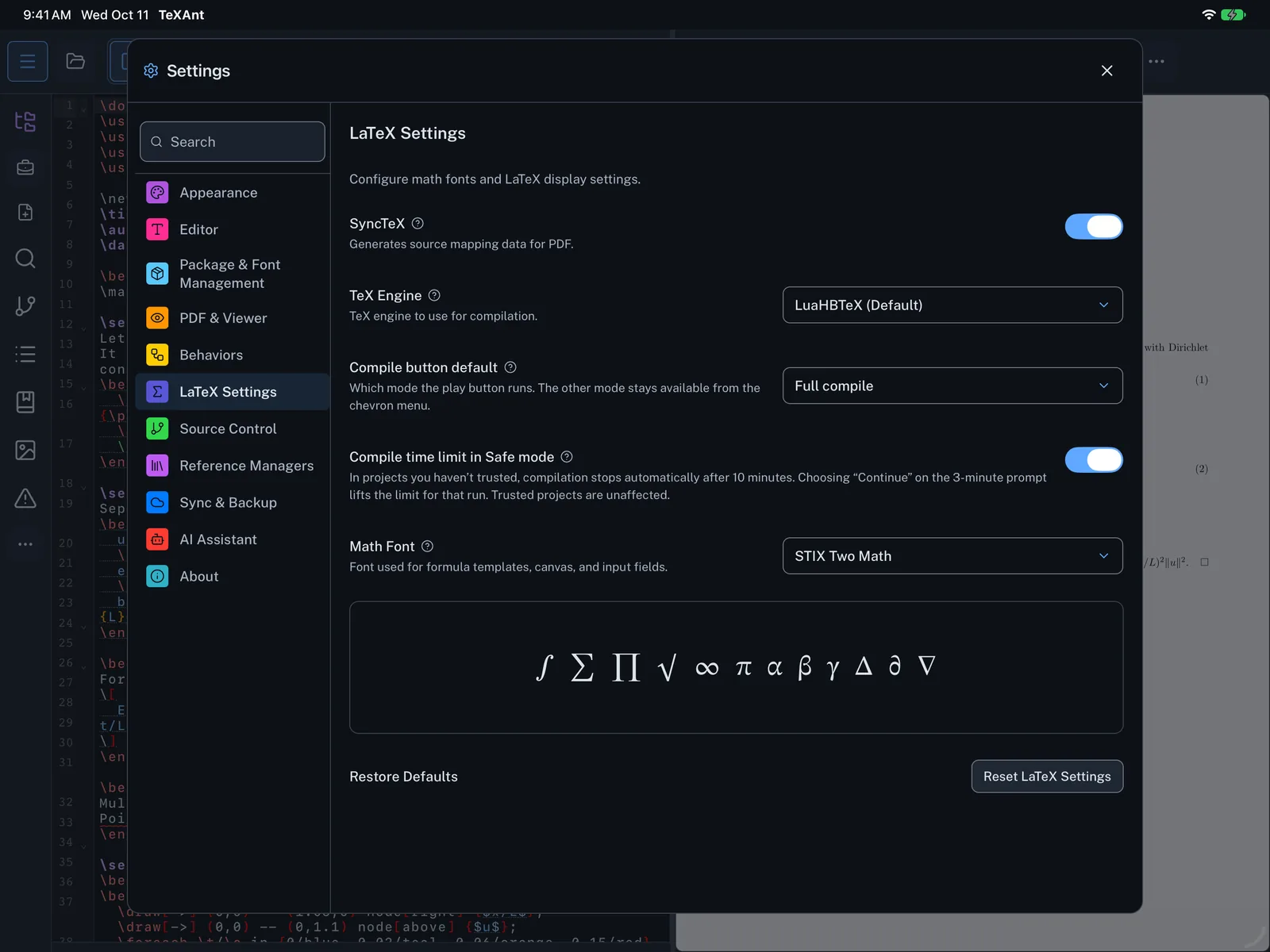
- Open Settings (the gear in the top bar, or ⌘ ,) and choose LaTeX Settings.
- Switch on SyncTeX. A note says it takes effect from the next compilation.
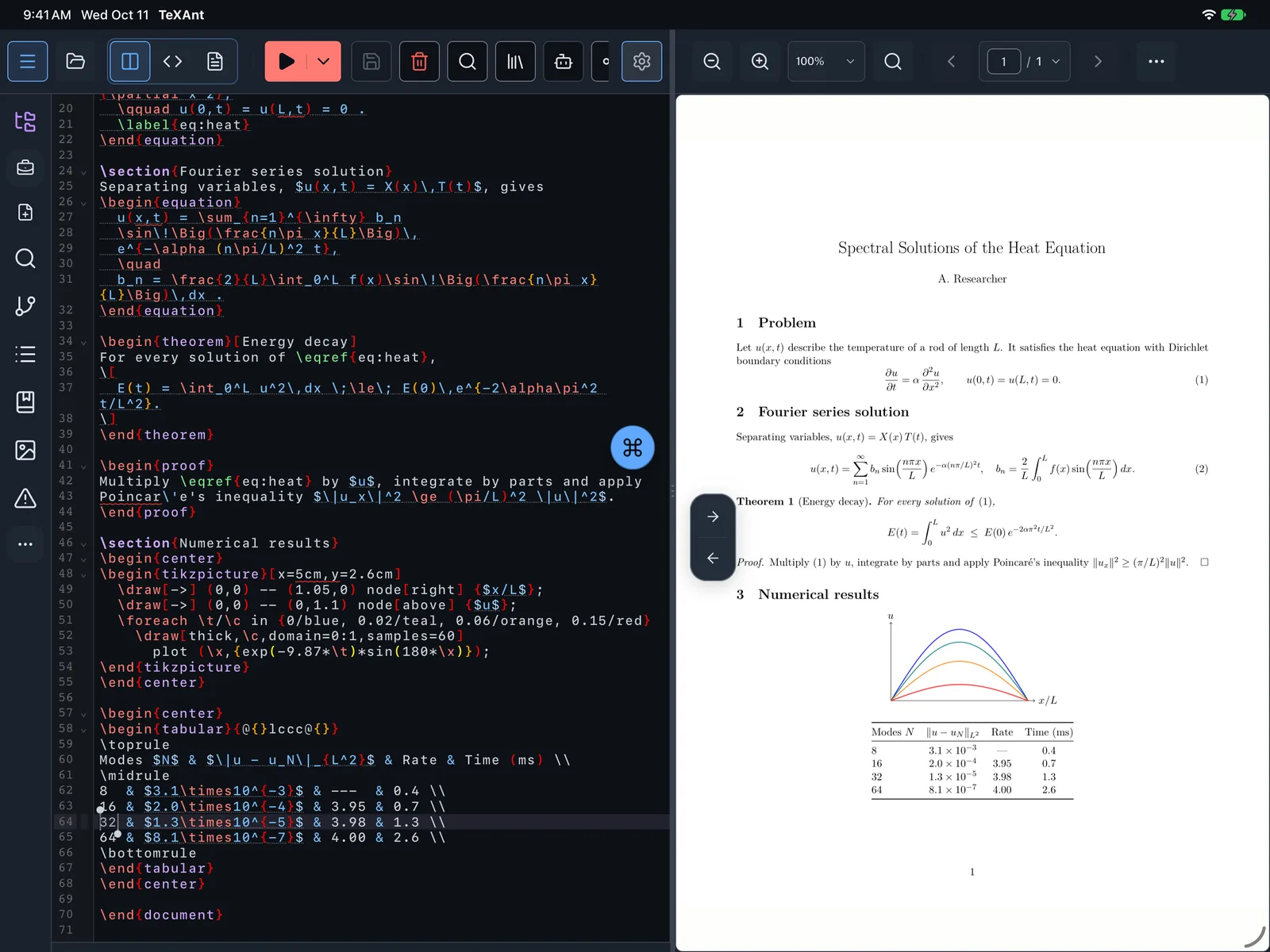
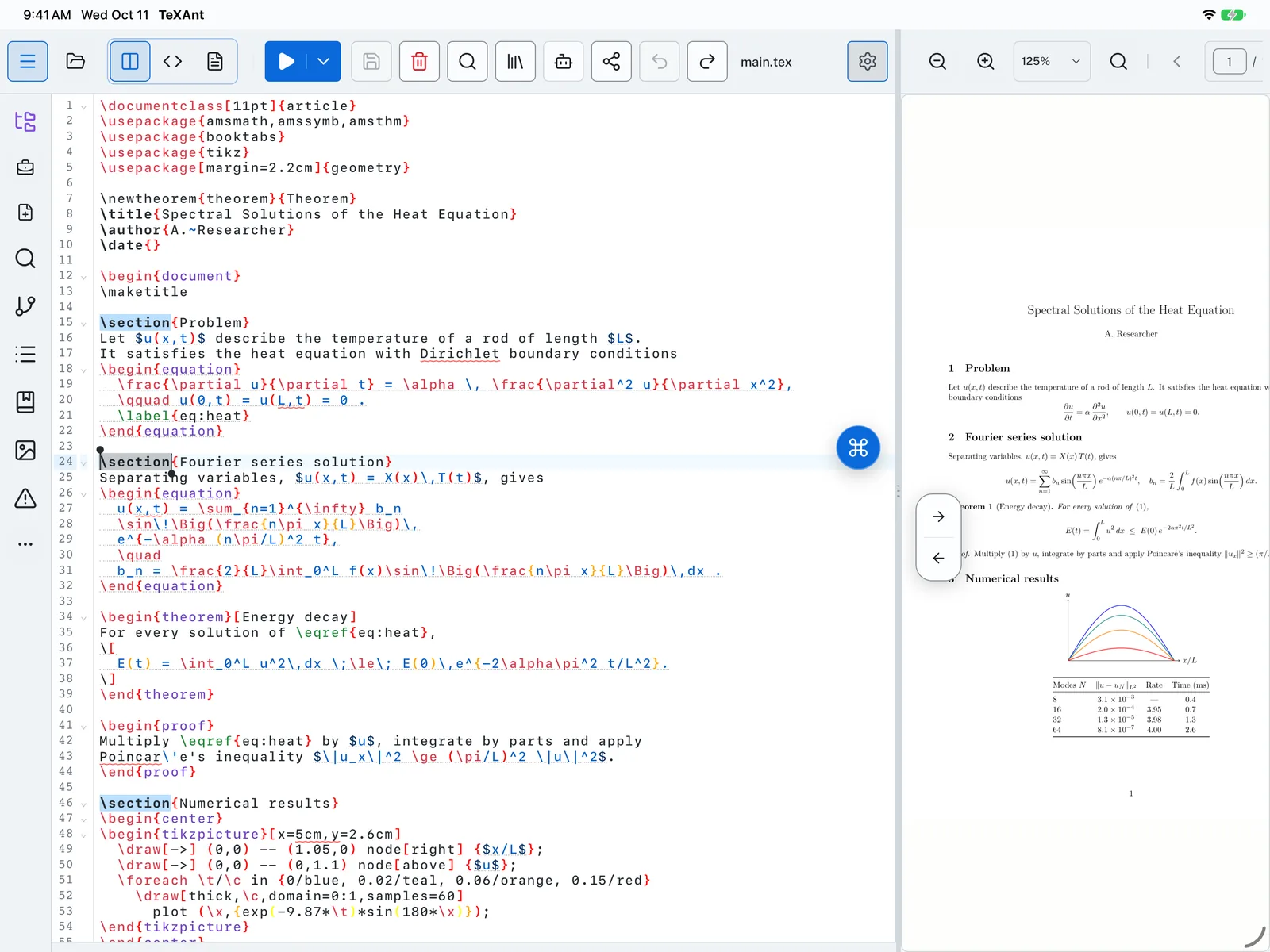
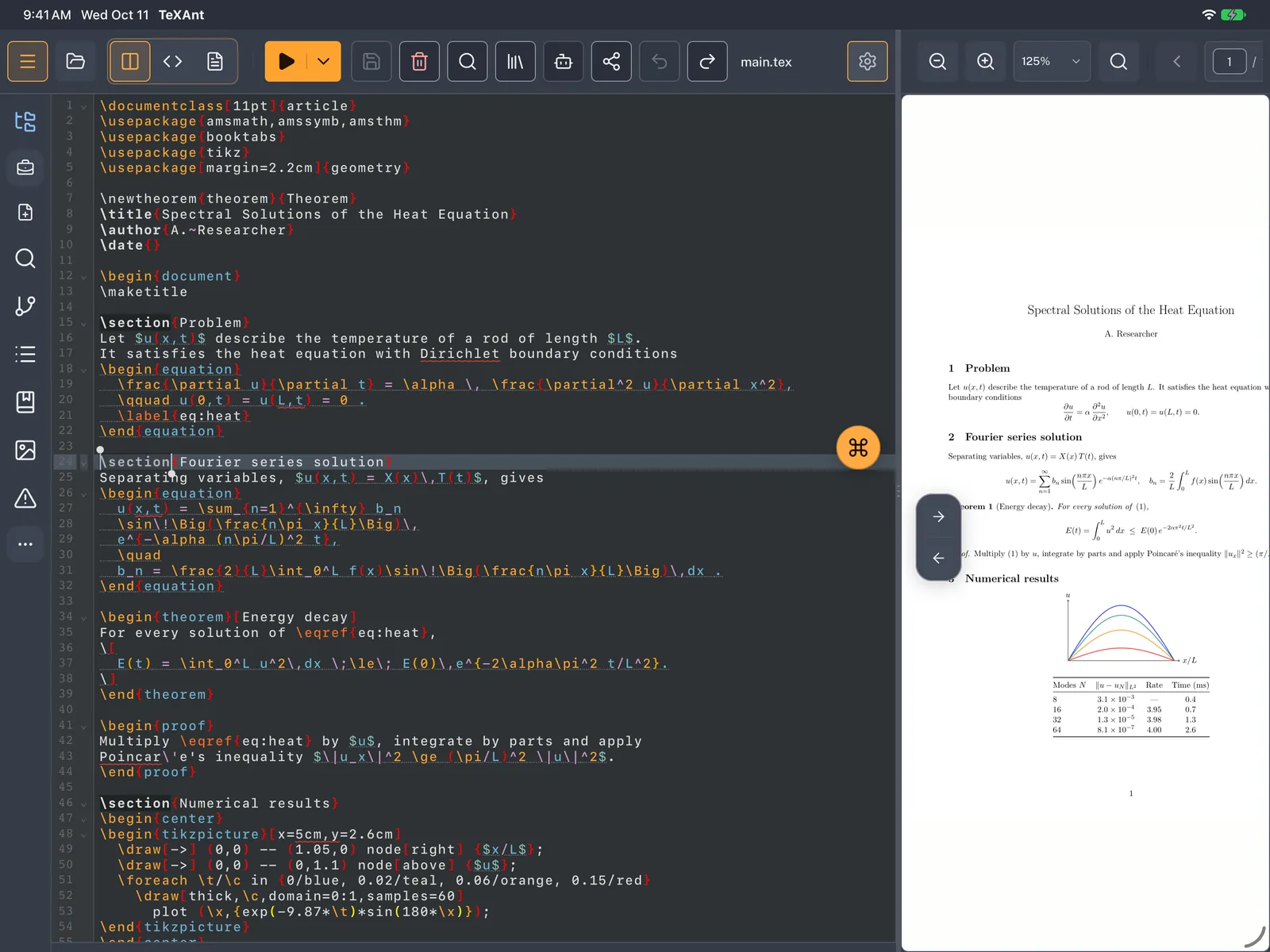
- Compile again, and switch to split view with the split view button or ⌘ 2.
- Move the cursor in your source. The PDF scrolls to where that line was typeset. The forward arrow in the small box over the PDF does the same on demand.
- Tap a spot in the PDF. The editor jumps to the line that produced it. The back arrow jumps there again later.
- To turn SyncTeX off, switch it off in the same place. This also takes effect from the next compilation.
- Jumping from the PDF to the source works in split view.