GUIDE 6 OF 42 · EDITOR
Change the editor font and size
Choose the code font, make the text bigger or smaller, and adjust the line spacing.
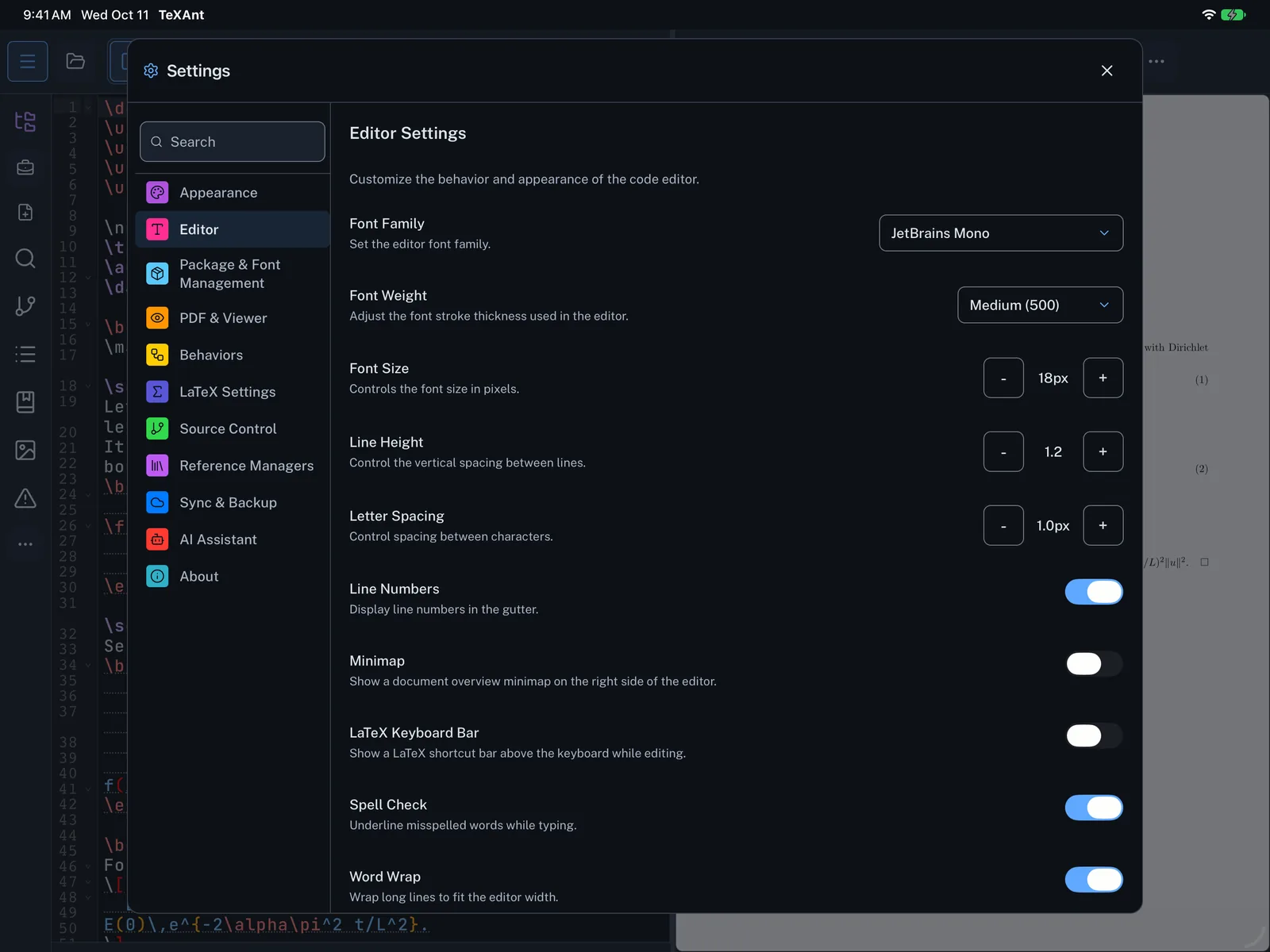
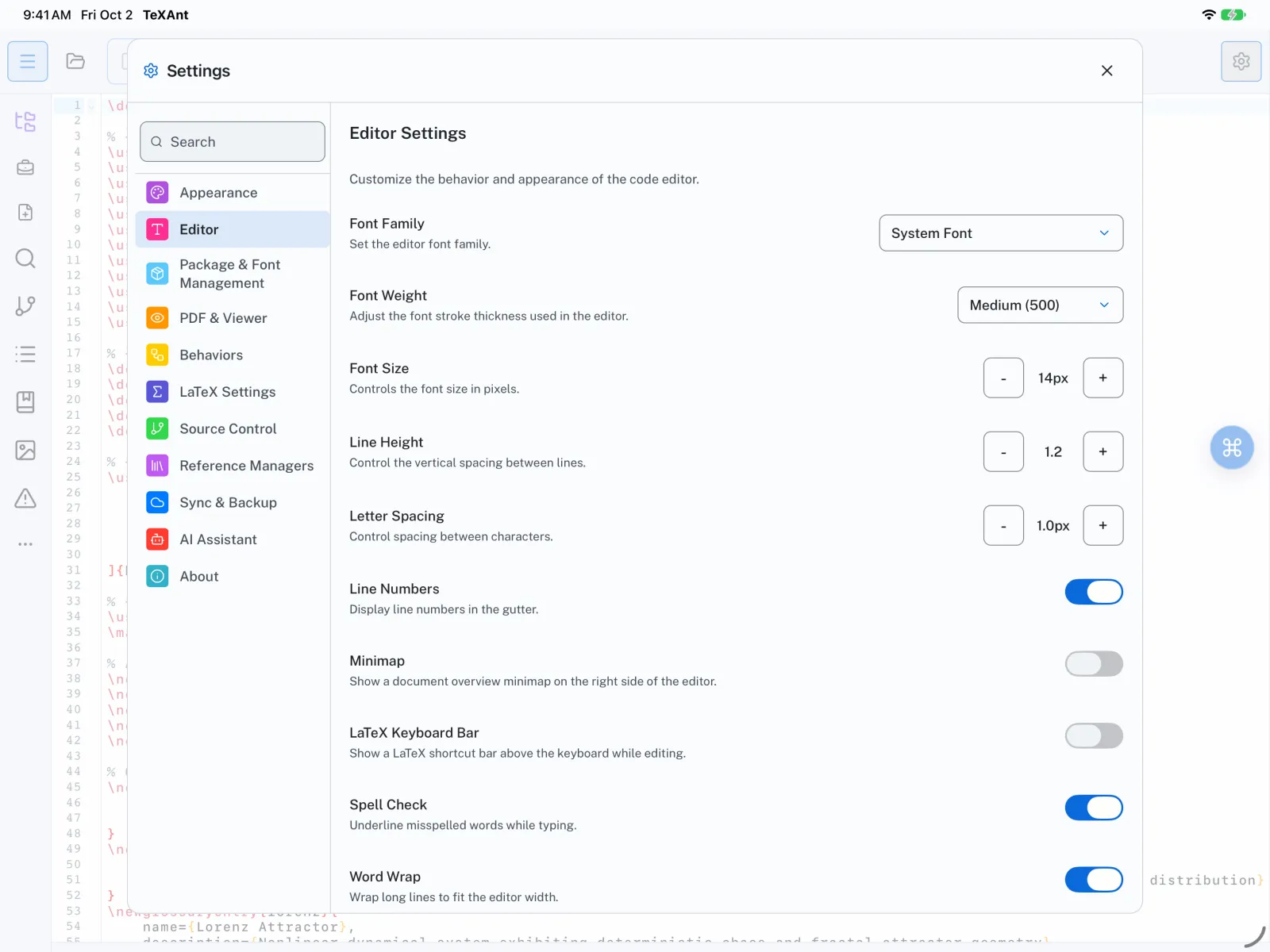
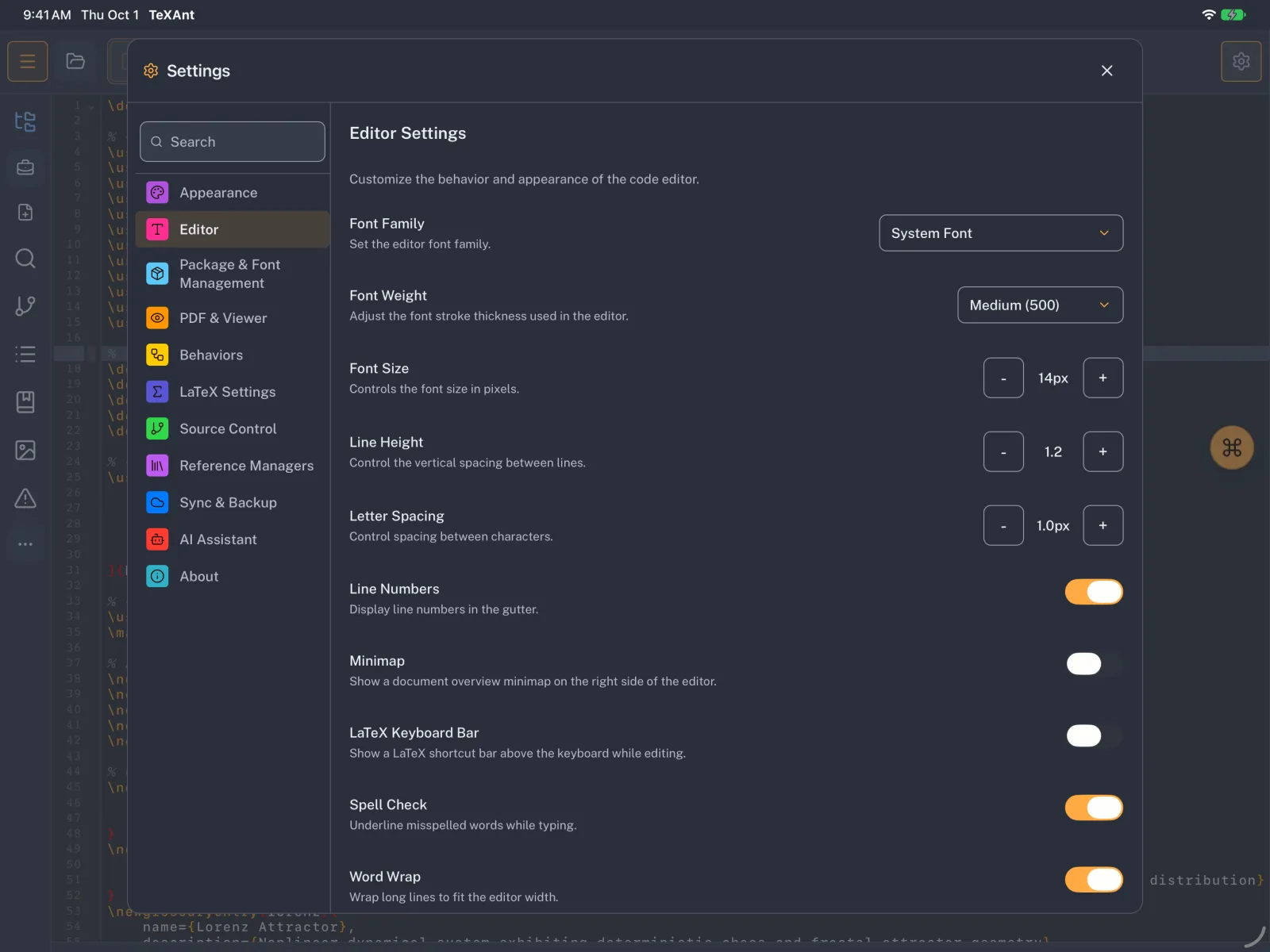
- Open Settings (the gear in the top bar, or ⌘ ,) and choose Editor.
- Under Font Family, keep System Font or pick one of the coding fonts that come with TeXAnt: JetBrains Mono, Fira Code, Source Code Pro, Roboto Mono or Inconsolata.
- Use the − and + buttons next to Font Size. It goes from 8 to 32 points; the default is 14.
- Use Line Height to add space between lines, from 1.0 to 2.5. The default is 1.2.
- Close Settings to keep writing with the new look.
- The same page also has Font Weight and Letter Spacing.