GUIDE 31 OF 42 · CLOUD SYNC & BACKUP
Handle a sync conflict
Decide what happens when a file changed both on your device and in the cloud.
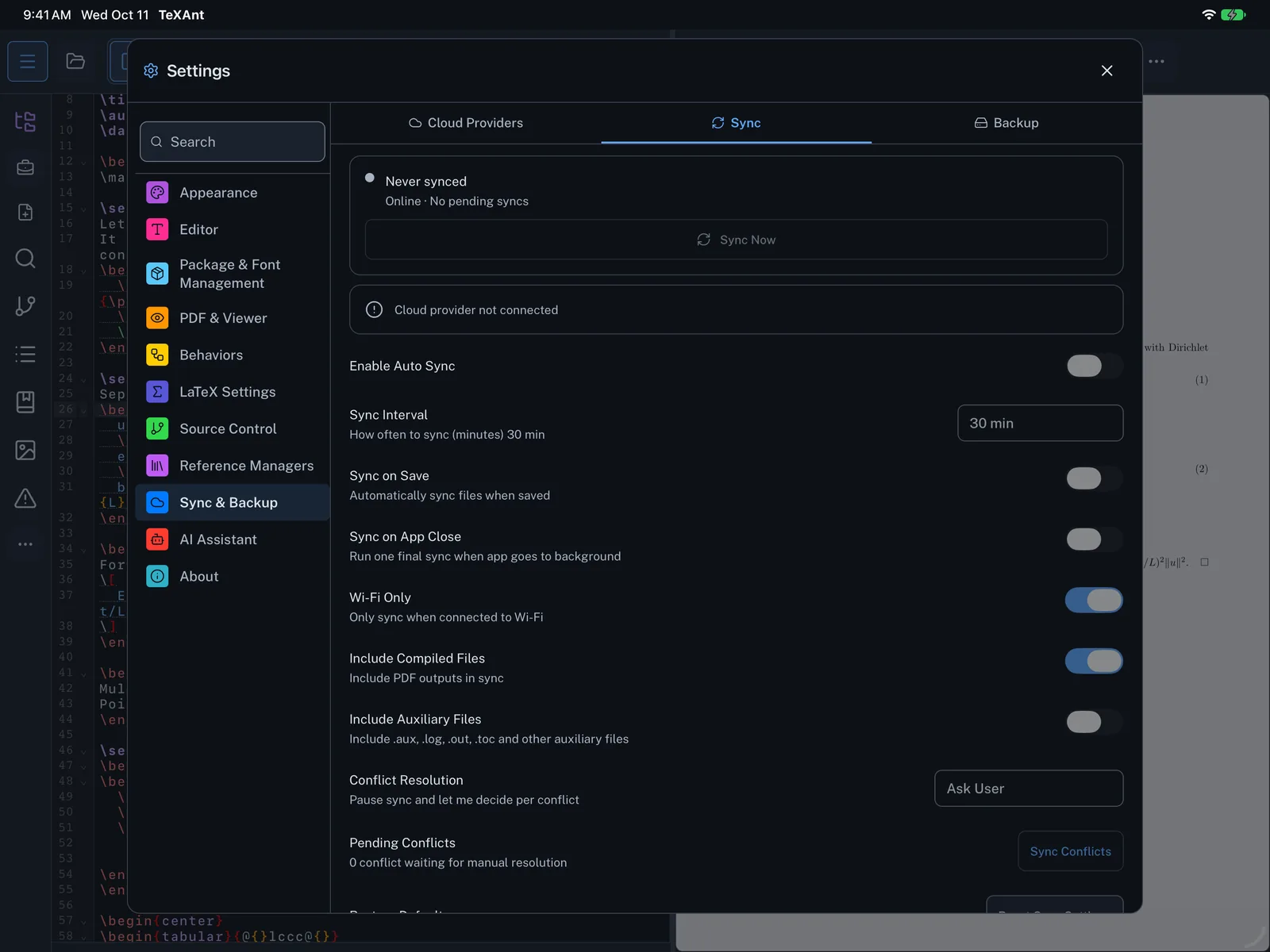
- Open Settings → Sync & Backup → Sync and find Conflict Resolution.
- Choose a rule: Ask User (the default), Use Local Version, Use Cloud Version or Keep Both Versions.
- With Ask User, a file in conflict is not synced until you decide. Pending Conflicts shows how many are waiting.
- Tap Sync Conflicts. For each file you see the Local and Cloud copies with their date and size.
- Tap Use local, Use cloud or Keep both.
- With Keep Both Versions as the rule, your device’s copy is kept as
name.local.texand the cloud copy takes the original name.