GUIDE 9 OF 42 · EDITOR
Find and replace in a file
Search the file you are editing, step through the matches and replace them.
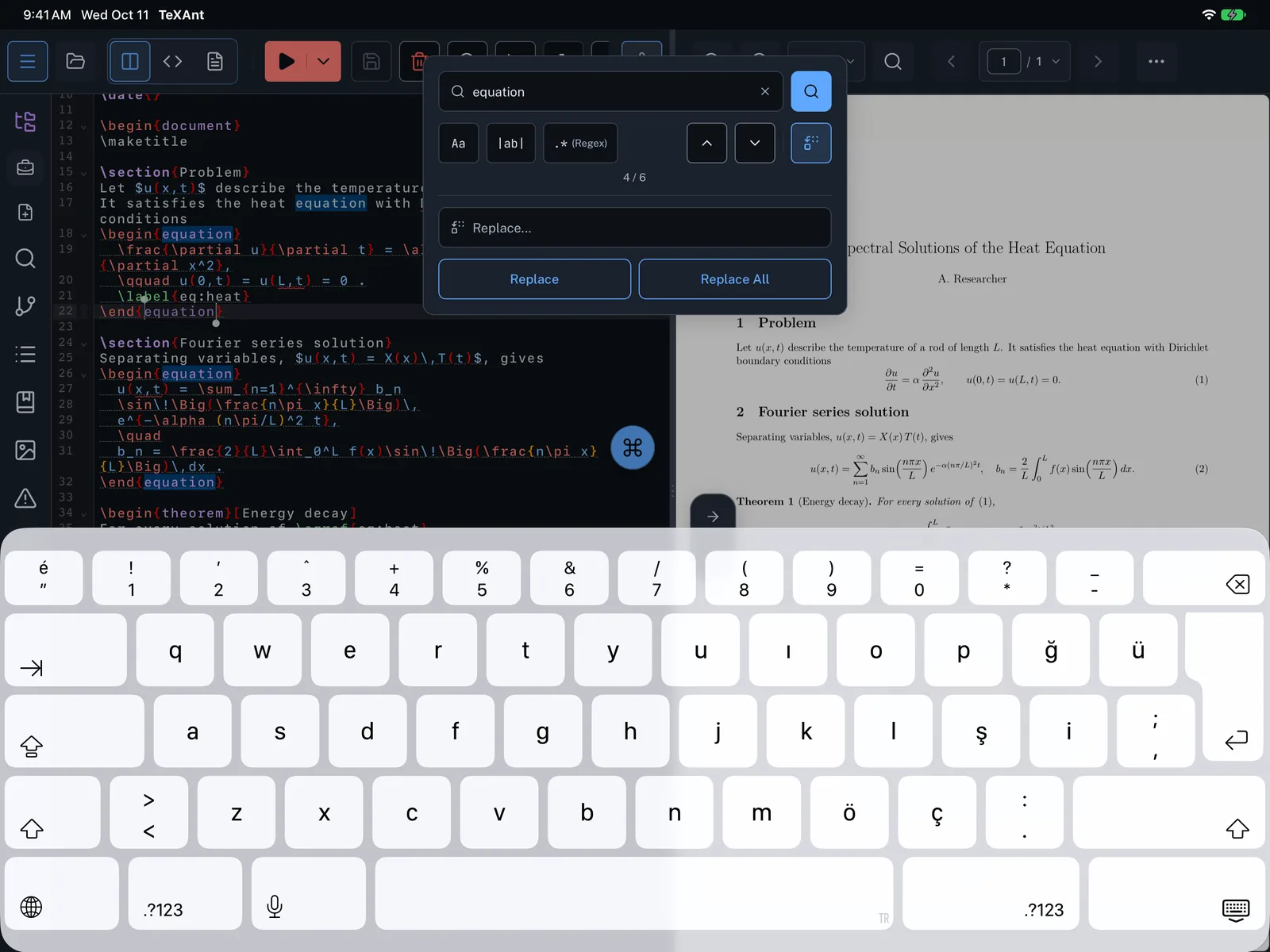
- With the file open, press ⌘ F, or tap the floating ⌘ button over the editor and choose Search.
- Type what you are looking for and press Return, or tap the magnifier.
- The count shows which match you are on and how many there are, for example
2 / 7. - Use the up and down arrows to go to the previous or next match. On a keyboard, ⌘ G and ⇧ ⌘ G do the same.
- Narrow the search with Aa (match case), |ab| (whole word) or .* (regular expression).
- To replace, tap Replace, type the new text, then tap Replace for the current match or Replace All.