
Working with Overleaf
Keep a project on Overleaf and edit it in TeXAnt too: clone it to your iPad or iPhone, write and compile offline, then push your changes back. Overleaf and TeXAnt talk to each other through Overleaf's Git integration.
What you need
- An Overleaf project whose owner has access to Overleaf's Git integration. On overleaf.com this is part of Overleaf's paid plans; see Overleaf's Git integration guide.
- An Overleaf Git token. In Overleaf, open Account Settings → Git integration and create one. Overleaf tokens expire after a year, so you will create a new one now and then.
1. Add your token to TeXAnt
Open Settings → Source Control → Overleaf (Git) and paste the token. Email and display name are optional; they are used for your commits. You do not need to enter a username. The How do I get a token? link in the same place opens Overleaf's settings page for you.
2. Bring the project to your device
There are two ways. Both use the same token.
As a Git repository
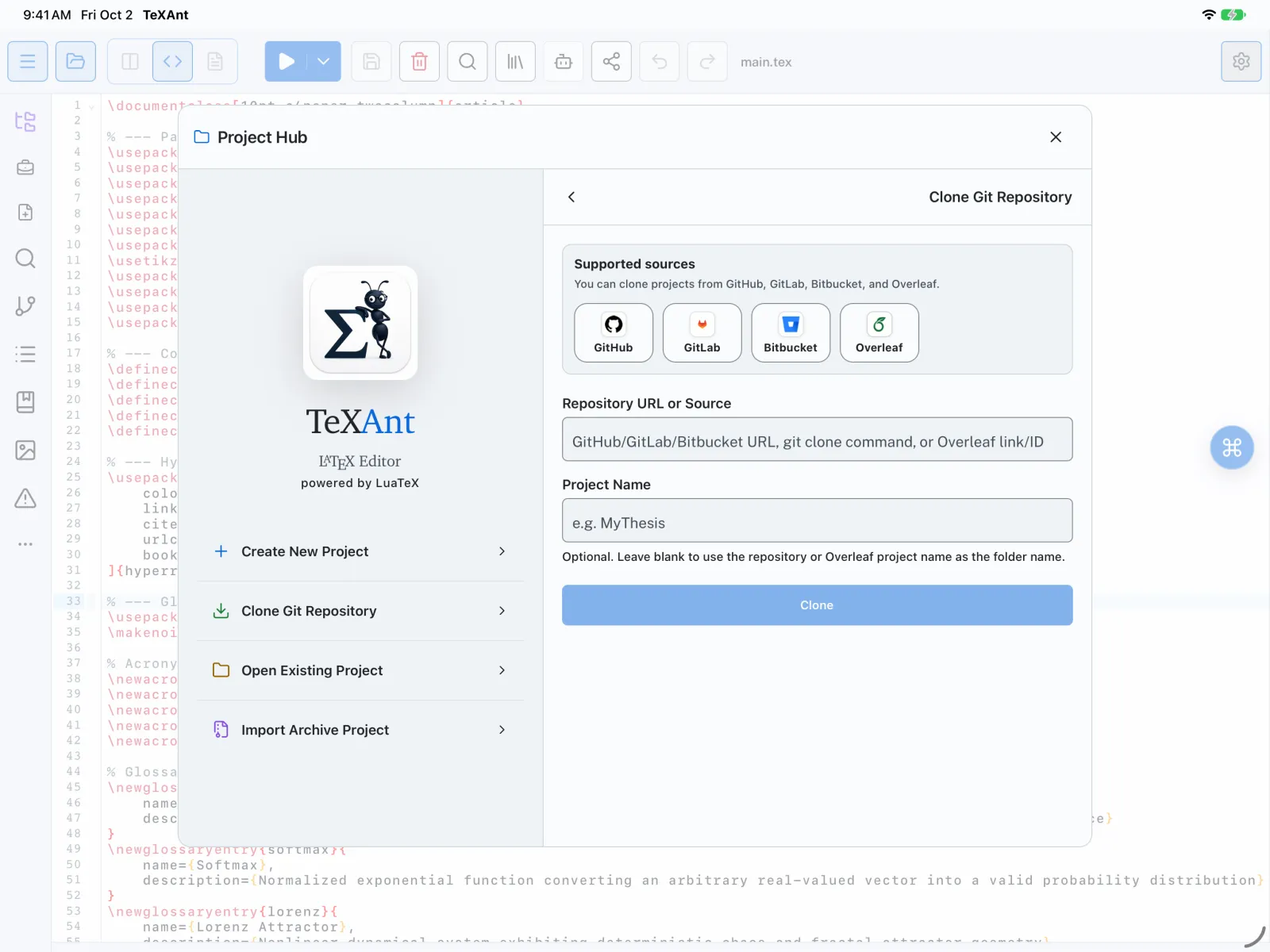
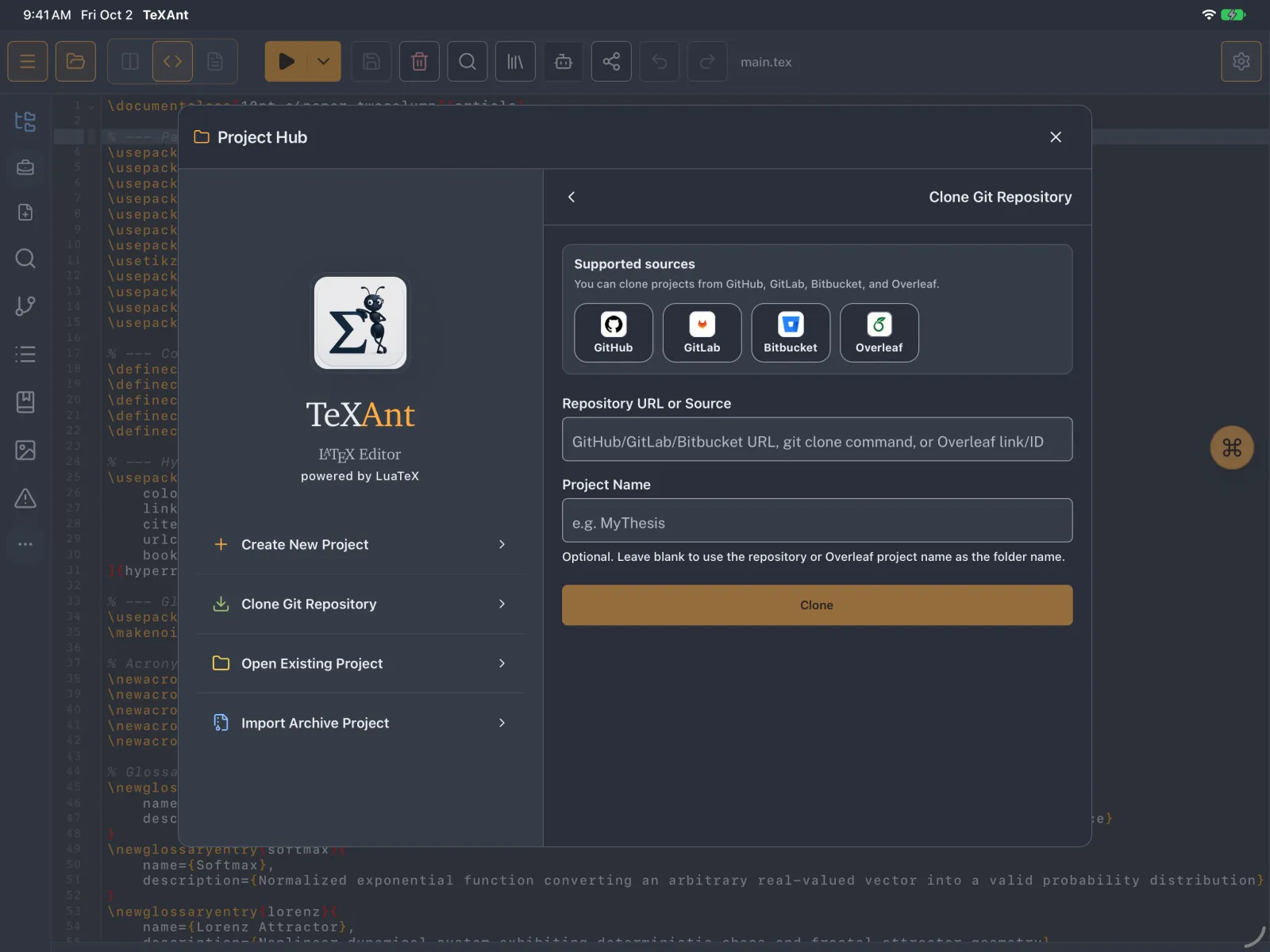
In the Project Hub, tap Clone Git Repository and paste the project's link. TeXAnt accepts the Overleaf project address (overleaf.com/project/…), the Git address (git.overleaf.com/…), a full git clone command, or just the project ID. You then pull and push yourself from the Git panel.
As a cloud project
In the Project Hub, open Cloud Options or Open from Cloud and choose Overleaf. A short guided setup asks for the project link or ID, then clones it into a TeXAnt folder. Projects you add this way are remembered, and saving a file pulls the latest version first and then sends your change to Overleaf.
3. Work offline, then sync
- Edit and compile as usual. Everything works without a connection, including commits.
- When you are back online, Pull first to get changes made on Overleaf, then Push yours.
- TeXAnt cannot merge changes that conflict yet. If you and someone on Overleaf changed the same lines, the pull stops with a message. Pull before you start and push when you finish, so your changes do not overlap.
- Overleaf only accepts pushes to its
masterbranch, and it does not accept tags.
If something goes wrong
“HTTP 403” or “Authentication failed”
The token is wrong, expired, or belongs to an account without access to the project. Create a new token in Overleaf and paste it again.
“Push Permission Rejected”
You have read-only access to this project. Ask the owner for edit access, or check the sharing settings in Overleaf.
“Repository not found”
Check the link. In Overleaf, the correct Git address is under Menu → Git (or Integrations) in the project.
The document compiles on Overleaf but not in TeXAnt
TeXAnt compiles with LuaLaTeX. Many Overleaf projects use pdfLaTeX by default, and most of them compile with LuaLaTeX unchanged, but some need small edits. See Will my document compile?