GUIDE 30 OF 42 · CLOUD SYNC & BACKUP
Sync and back up with iCloud Drive
Connect iCloud Drive, sync your project automatically and keep scheduled backups.
- On the device, sign in to iCloud and make sure iCloud Drive is on for TeXAnt (iOS Settings → your name → iCloud → iCloud Drive).
- In TeXAnt, open Settings → Sync & Backup → Cloud Providers. Tap Connect next to iCloud Drive, enter your Apple ID email and tap Connect.
- Tap Set Default, so sync and backups use iCloud Drive.
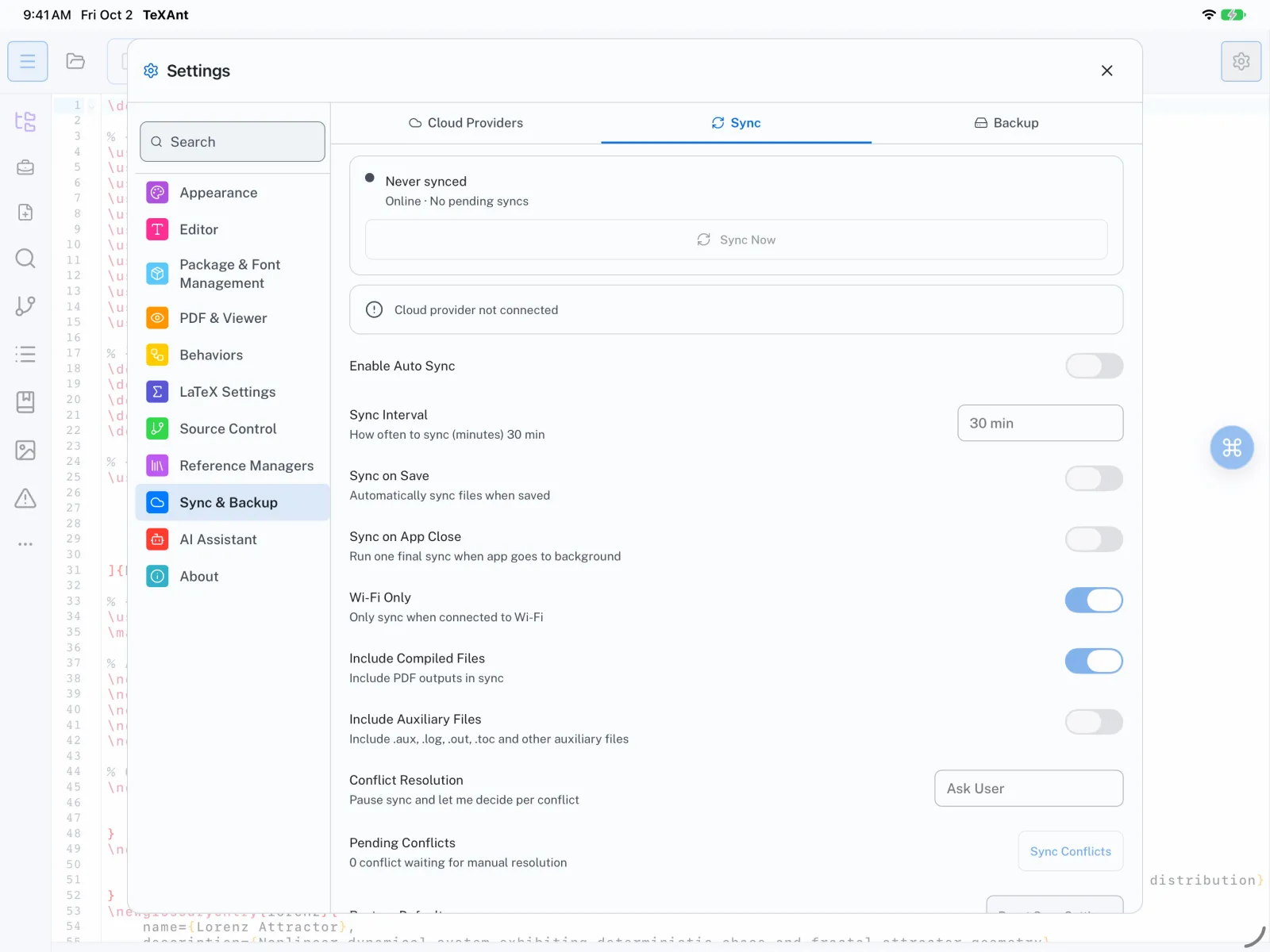
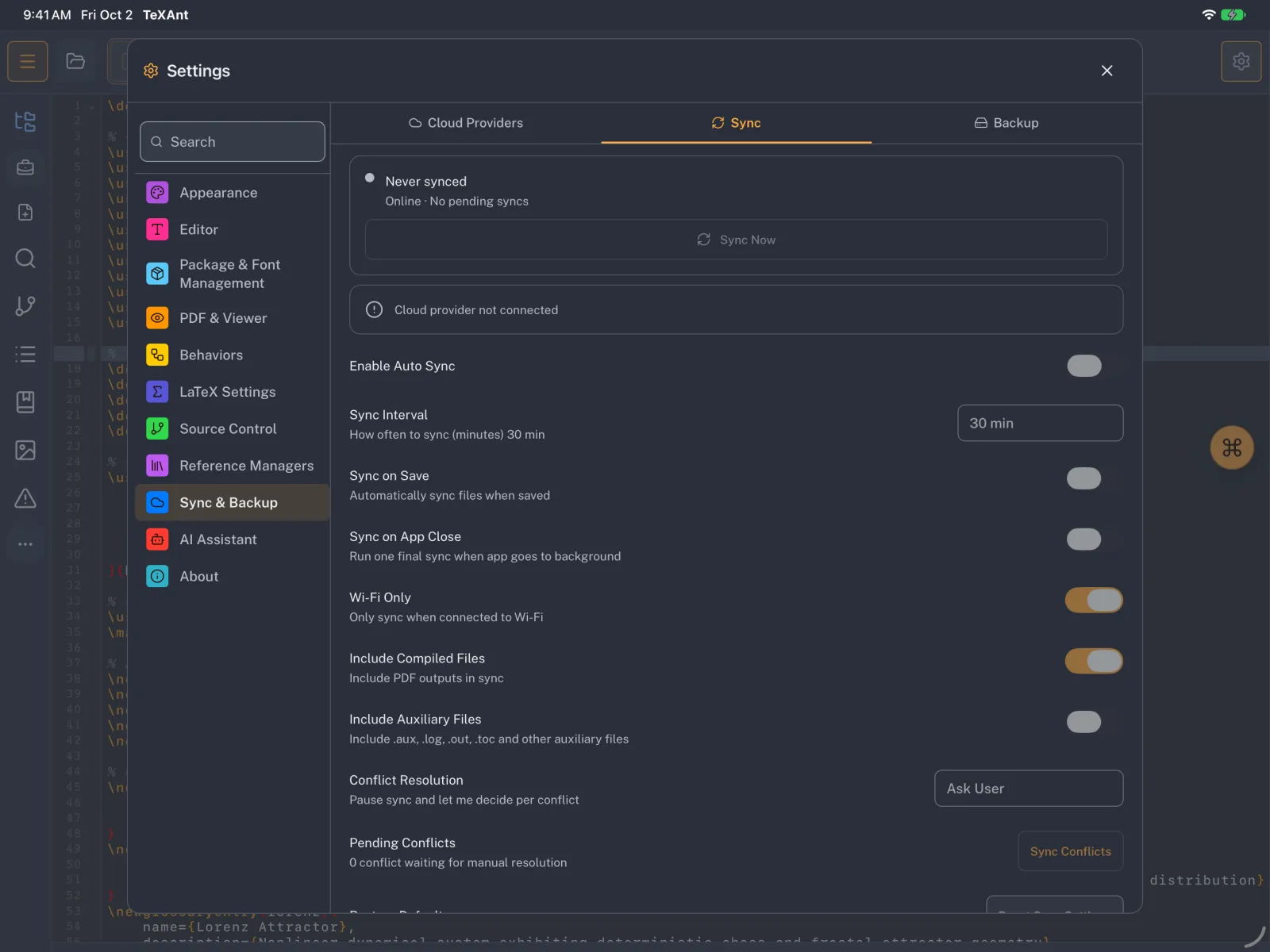
- On the Sync tab, turn on Enable Auto Sync and choose a Sync Interval of 5, 15, 30 or 60 minutes. Sync on Save, Sync on App Close and Wi-Fi Only are optional.
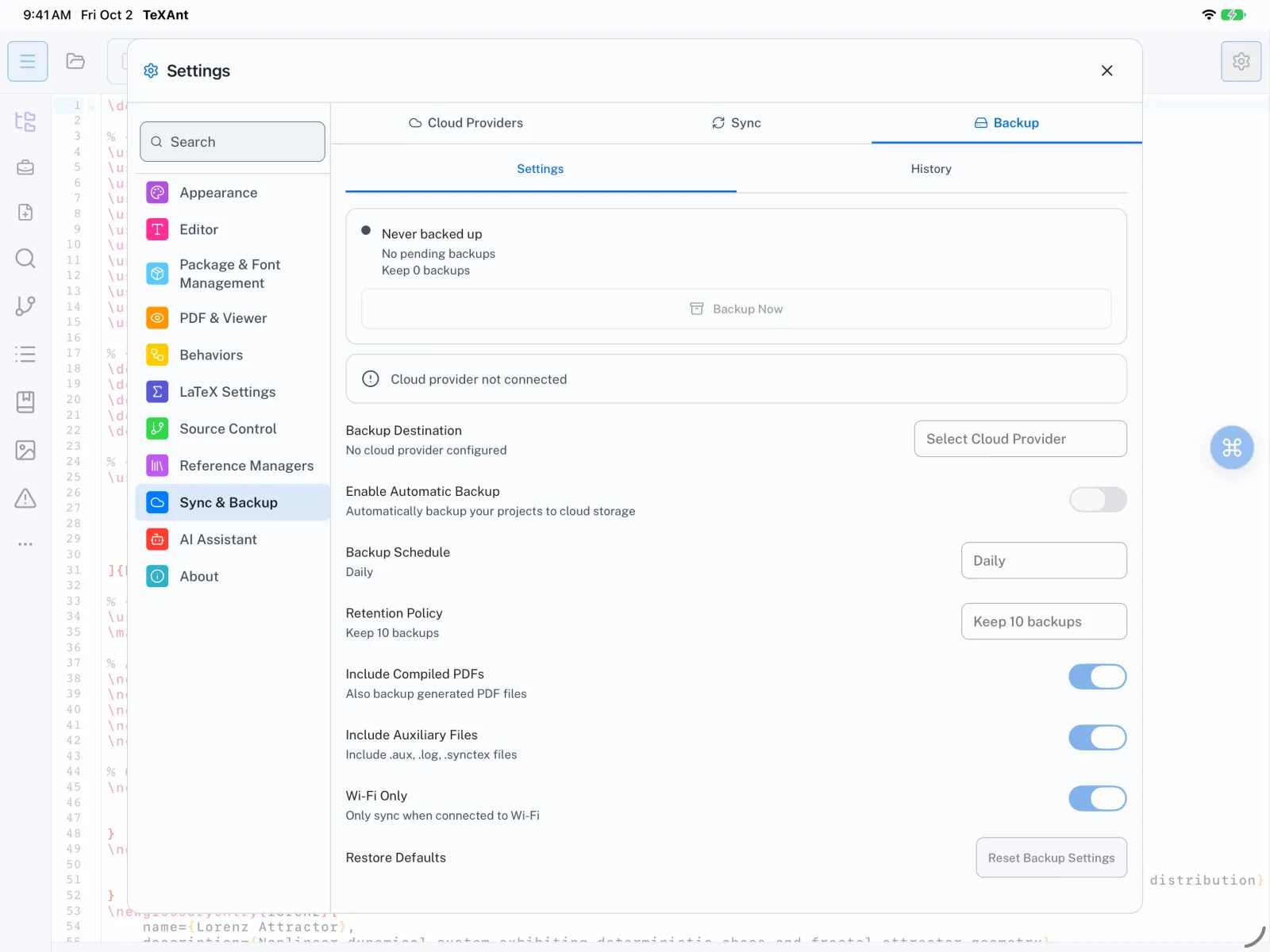
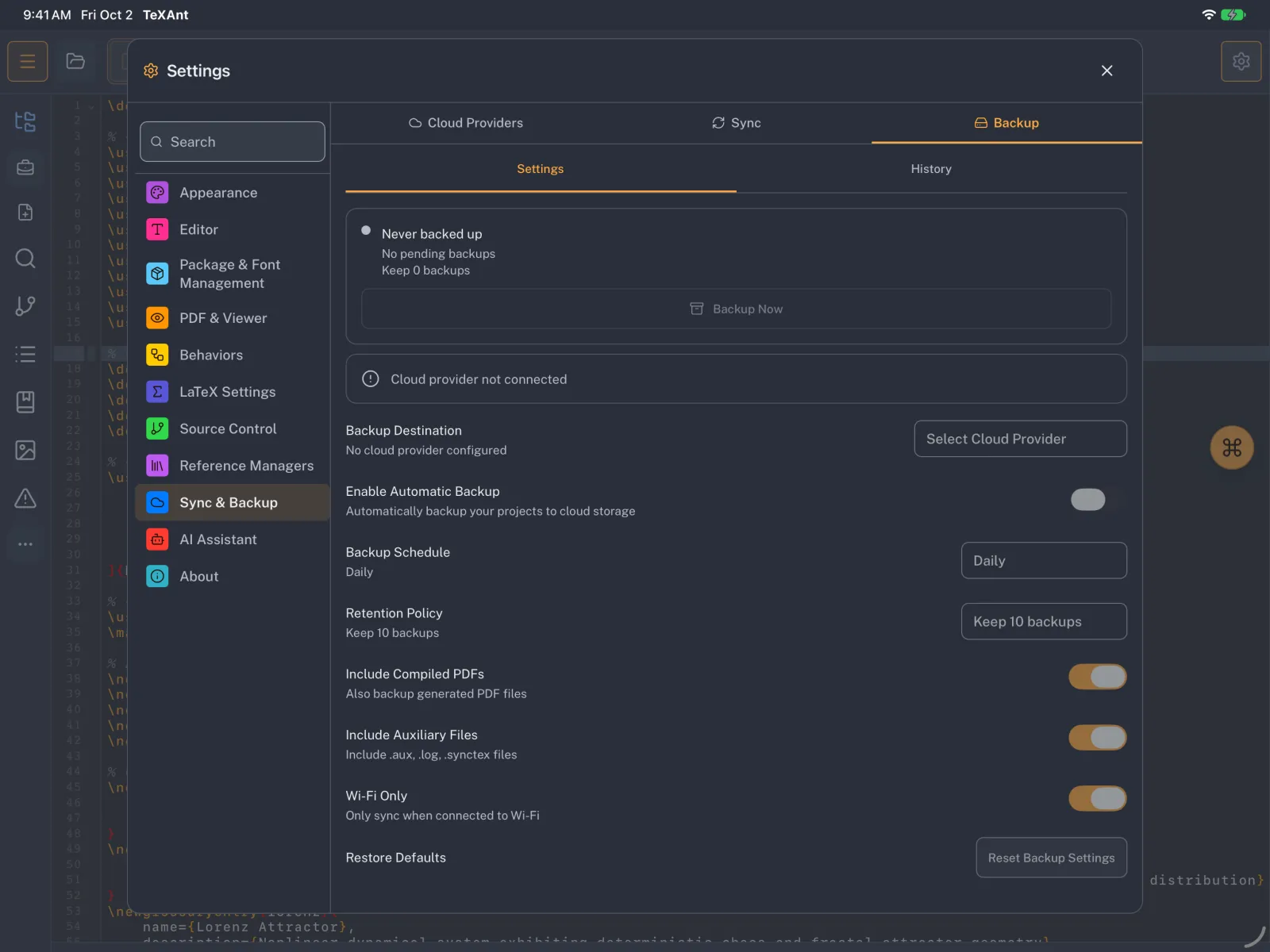
- On the Backup tab, choose iCloud Drive (or another connected provider) as Backup Destination, turn on Enable Automatic Backup, and pick a Backup Schedule (Manual, Hourly, Daily or Weekly).
- Under Retention Policy, choose how many backups to keep: 5, 10, 20 or 50.
- Tap Backup Now to make the first backup right away.
- Sync and scheduled backups run while TeXAnt is open, for the project you have open.
- The same steps work with Google Drive, Dropbox, OneDrive, Box, Yandex Disk and Amazon S3.