GUIDE 20 OF 42 · PDF
Show one page or two pages side by side
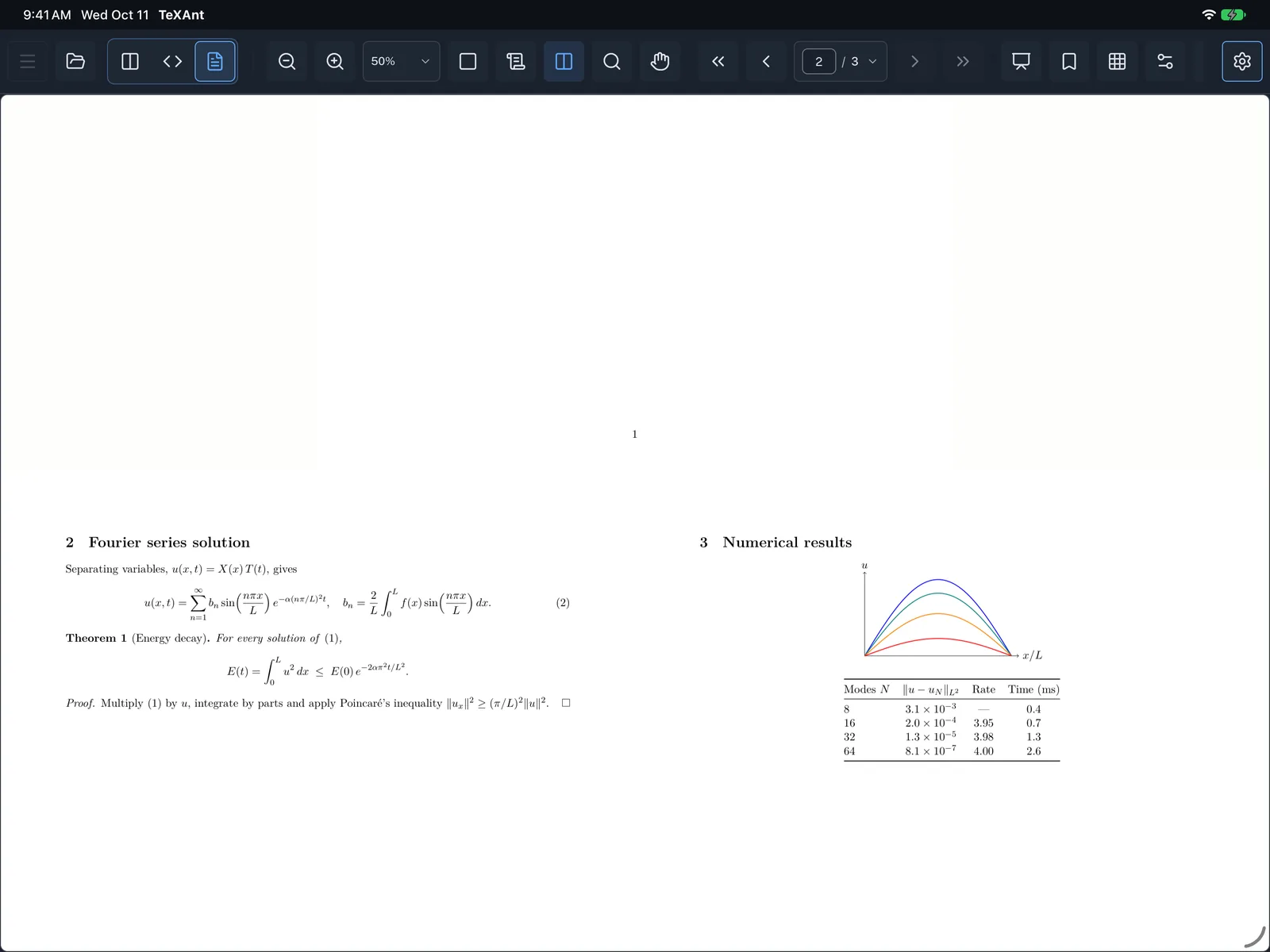
See facing pages together, like an open book, to check how a thesis or book will look in print.
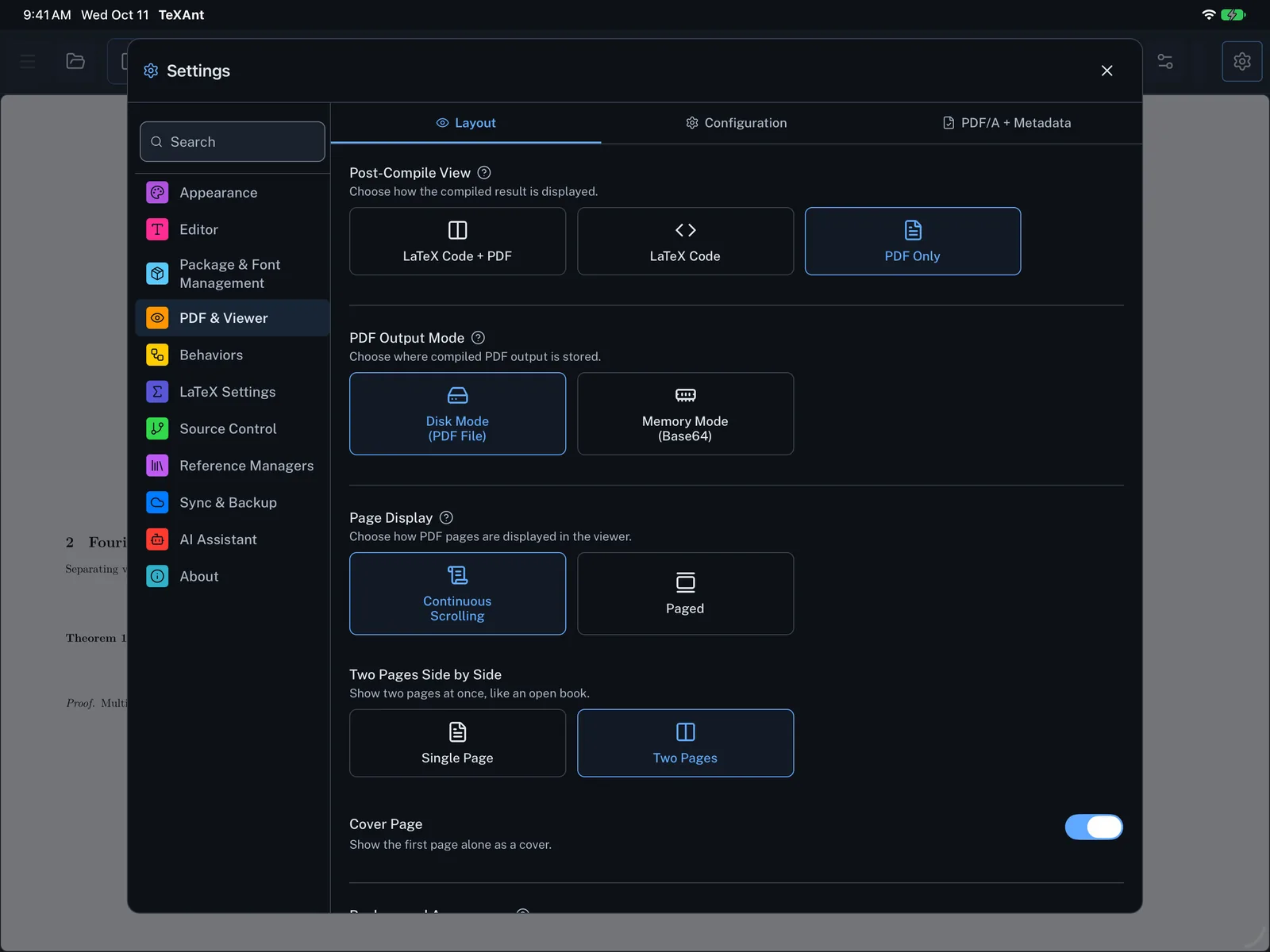
- Open Settings (the gear, or ⌘ ,), choose PDF & Viewer and the Layout tab.
- Under Two Pages Side by Side, choose Two Pages. Single Page is the default.
- With two pages on, Cover Page shows the first page on its own, as a printed book does. It is on by default; turn it off to pair page 1 with page 2.
- Quicker: in PDF-only view, tap the two-column button in the PDF toolbar to turn the spread on or off.
- Reset Layout Settings on the same page brings back continuous scrolling, single page and the cover page.