GUIDE 23 OF 42 · PROJECTS & FILES
Delete a file
Remove a file from your project.
- Open the file you want to delete.
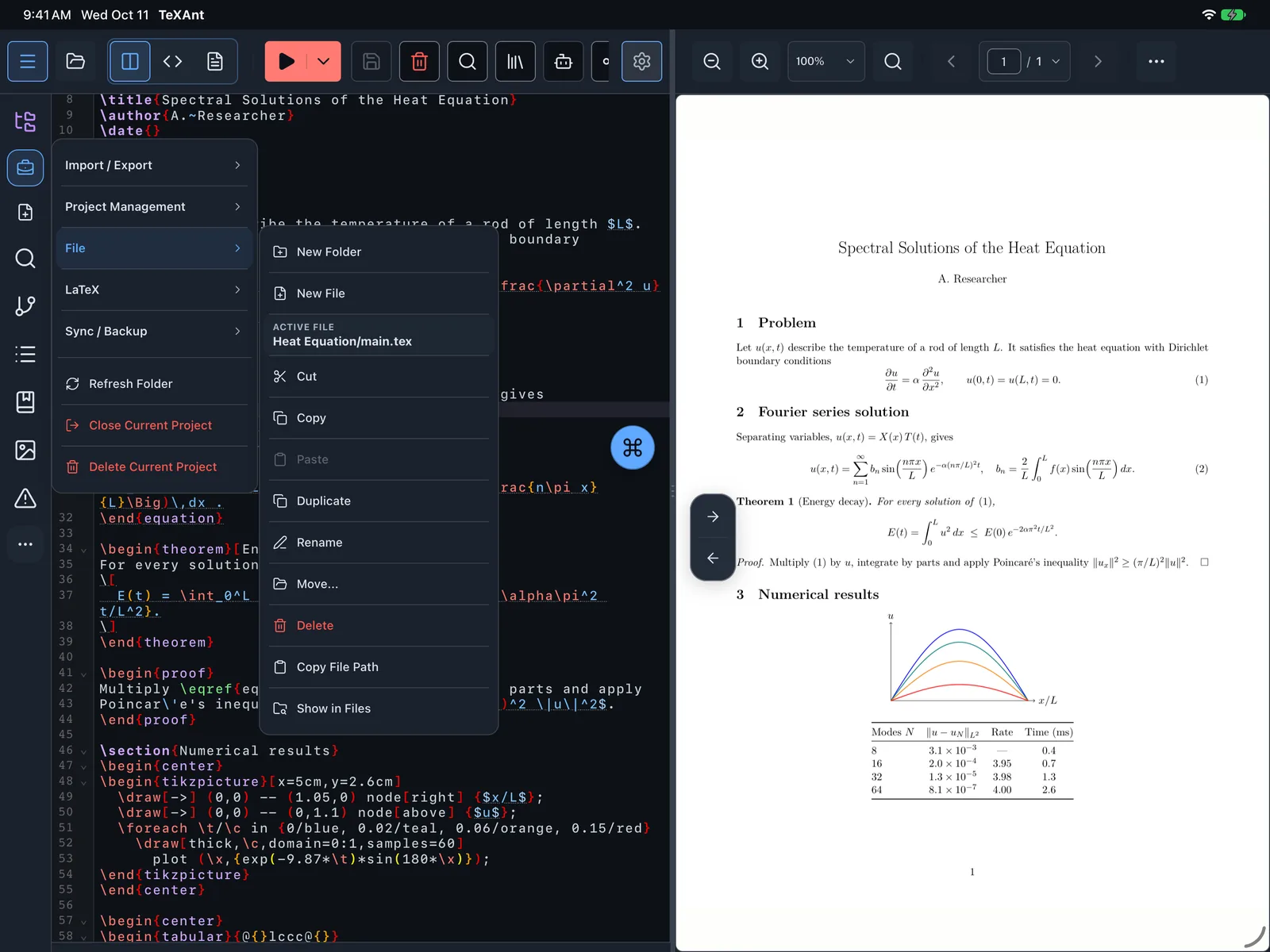
- Tap Project actions menu on the left rail, open File and choose Delete.
- Confirm with Delete. You see File deleted.
- Another way: in the Files panel, select the file and tap the trash button at the top of the panel.
- There is no trash in TeXAnt: deleting is permanent on your device.
- In a Git project, the deletion shows up in the Git panel as a change, like any other edit.
- In the Files panel, check what is selected before tapping the trash button. With the project name selected, it deletes the whole project.