GUIDE 14 OF 42 · WRITING TOOLS
Insert a figure
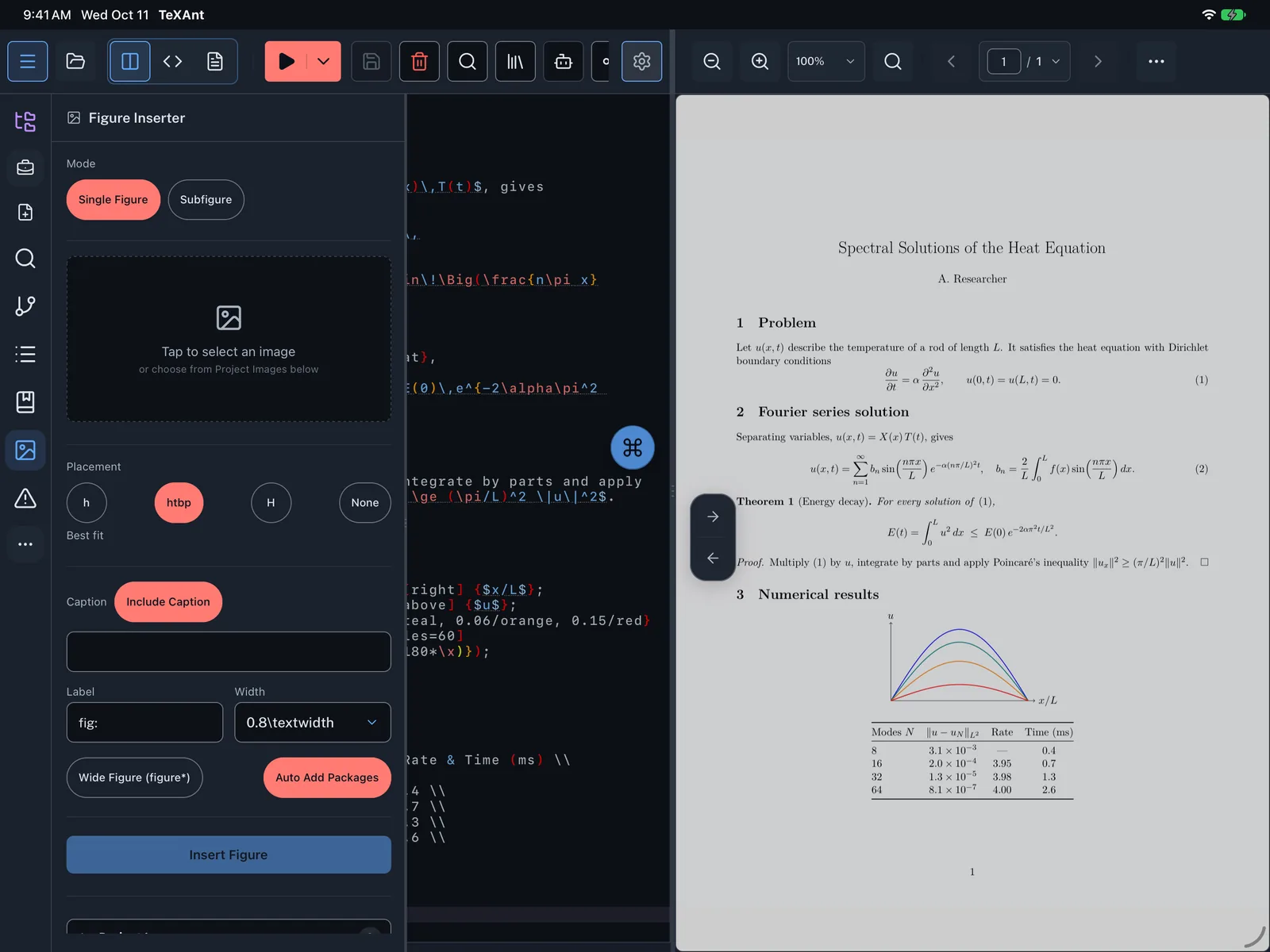
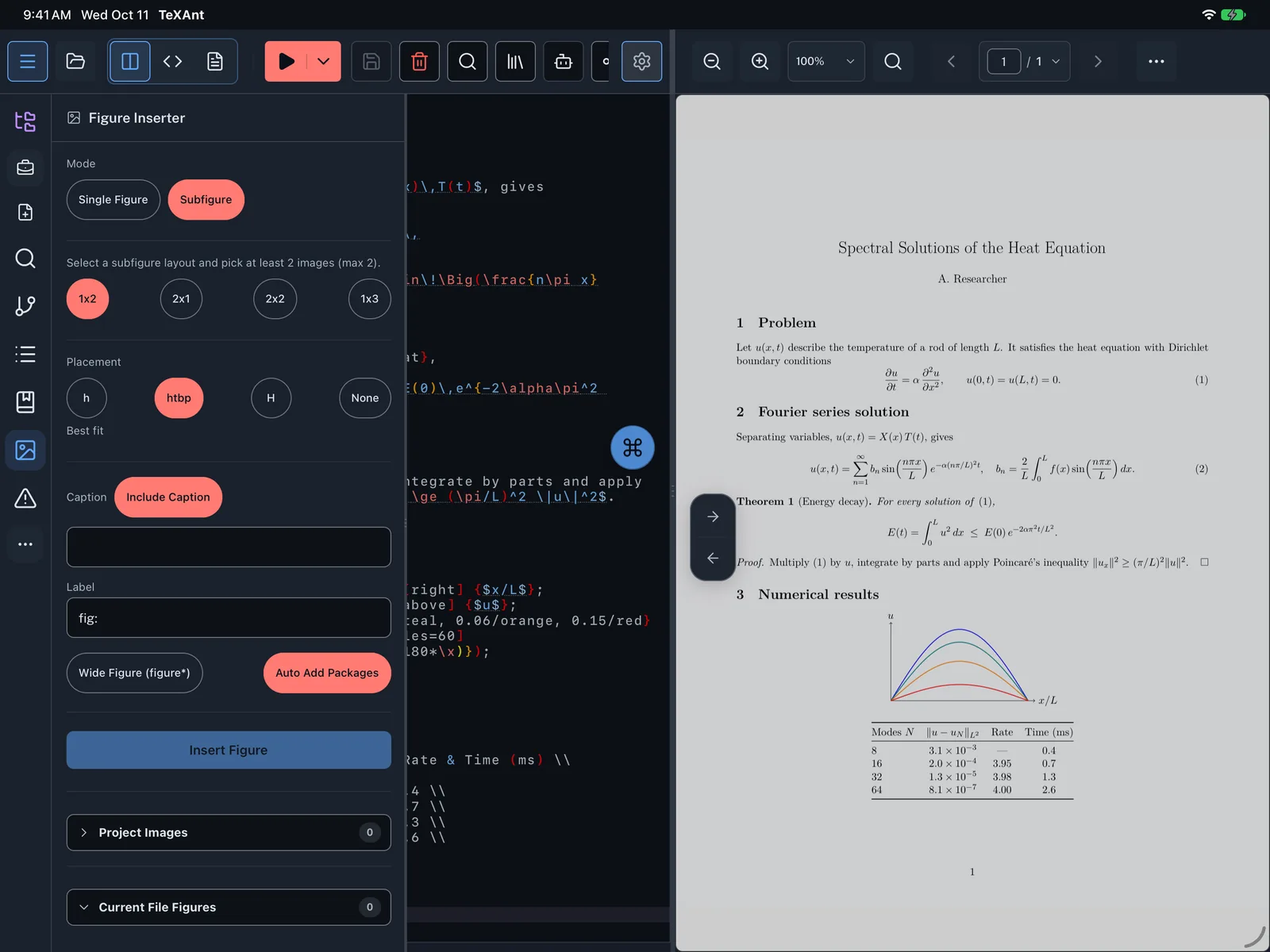
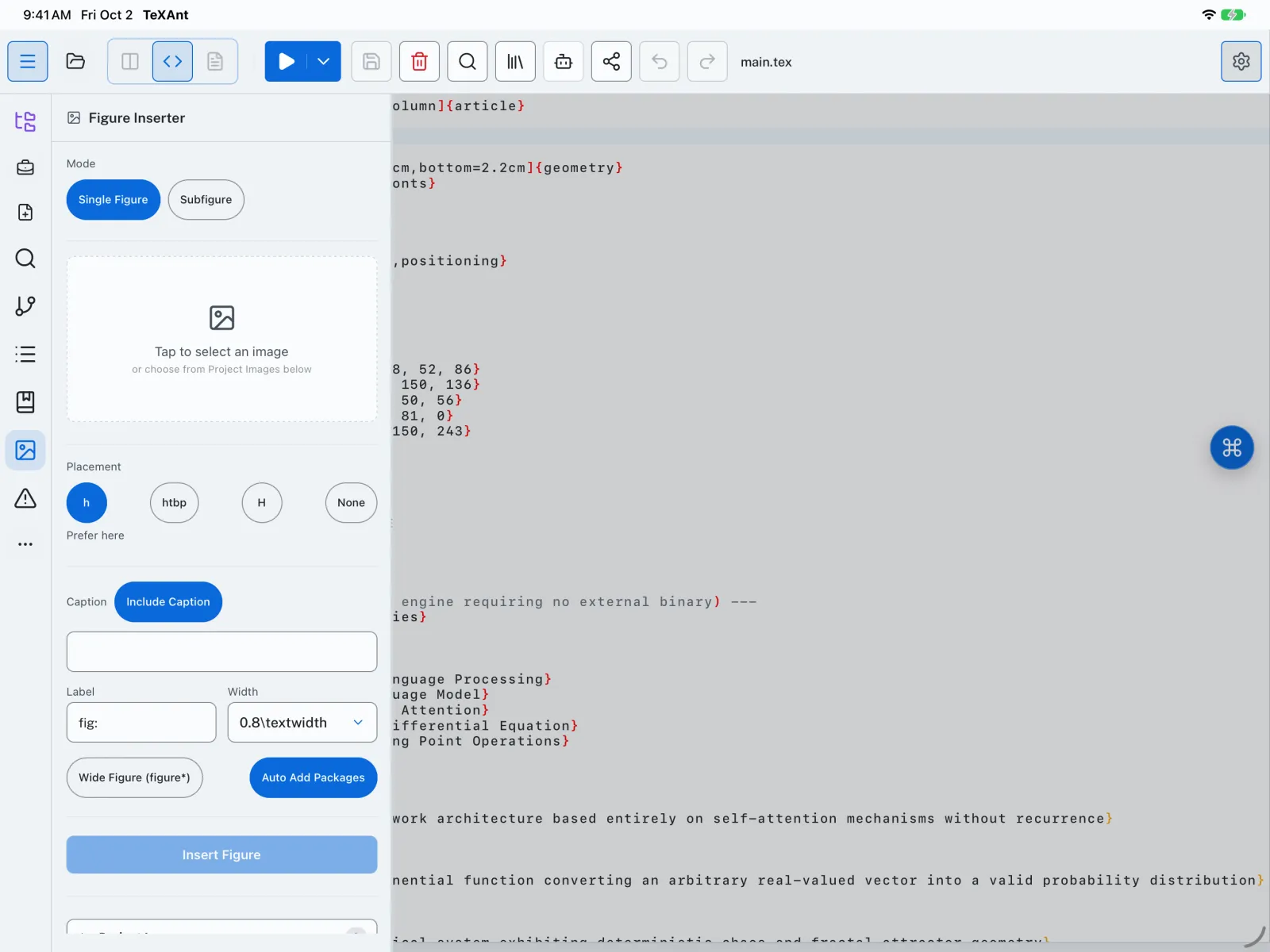
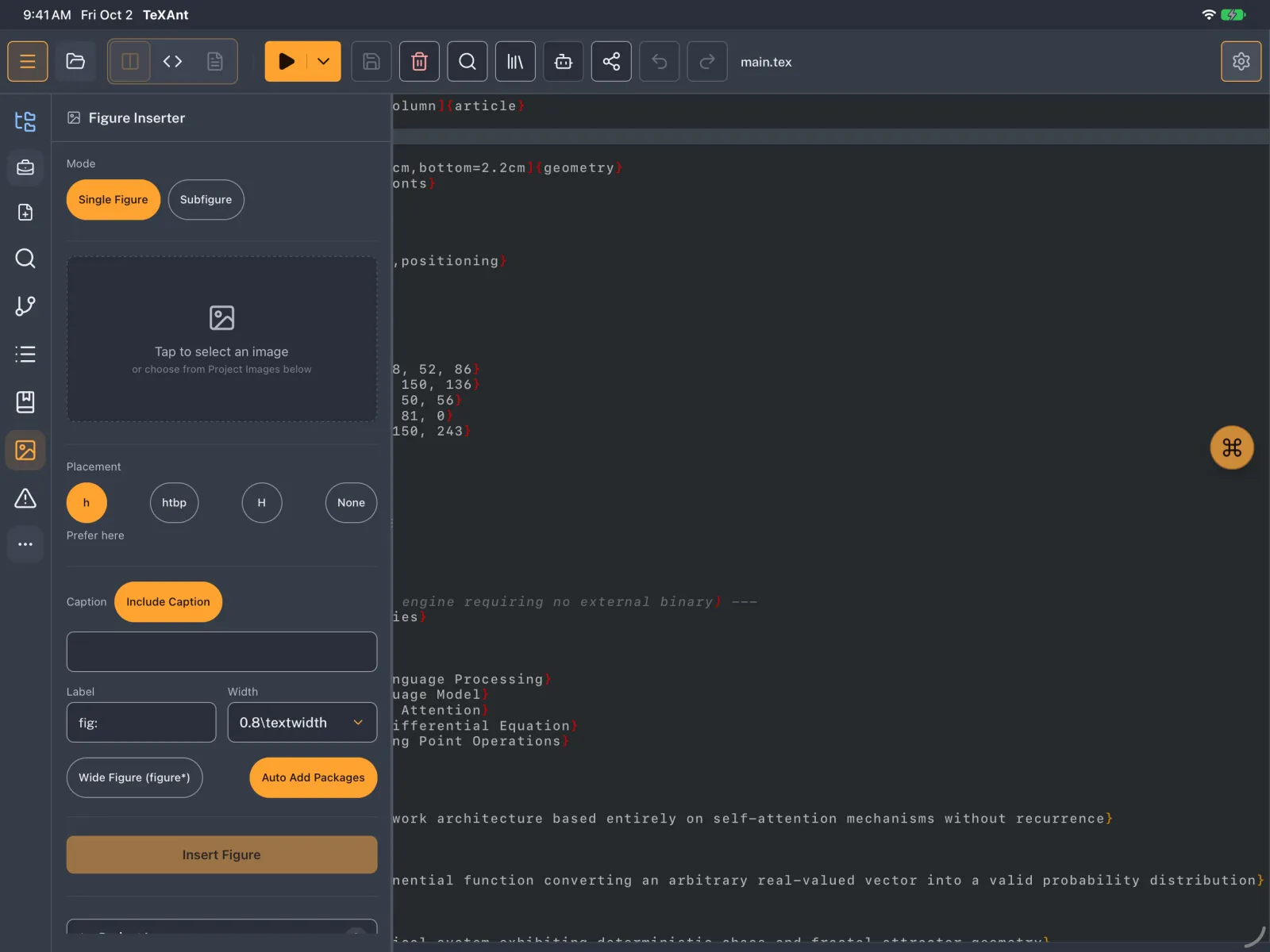
Pick an image, set the caption, label, width and placement, and TeXAnt writes the figure code for you.
- Put the cursor where the figure should go, then tap Figure on the left rail.
- Choose Single Figure or Subfigure under Mode.
- Tap Tap to select an image to pick a photo, or choose one of the Project Images below. A new photo is copied into the project’s
imagesfolder. - For a single figure you can rotate, flip, crop and resize the image before inserting it.
- Set Placement, Caption, Label and Width. The label starts as
fig:plus the image name. - Tap Insert Figure. The code goes in at the cursor. With Auto Add Packages on,
graphicx(andsubcaptionfor subfigures) is added to the preamble if it is missing.
- To change a figure you already have, pick it under Current File Figures; the button becomes Update Figure.
- The Exactly here placement (
H) needs\usepackage{float}, which you add yourself.